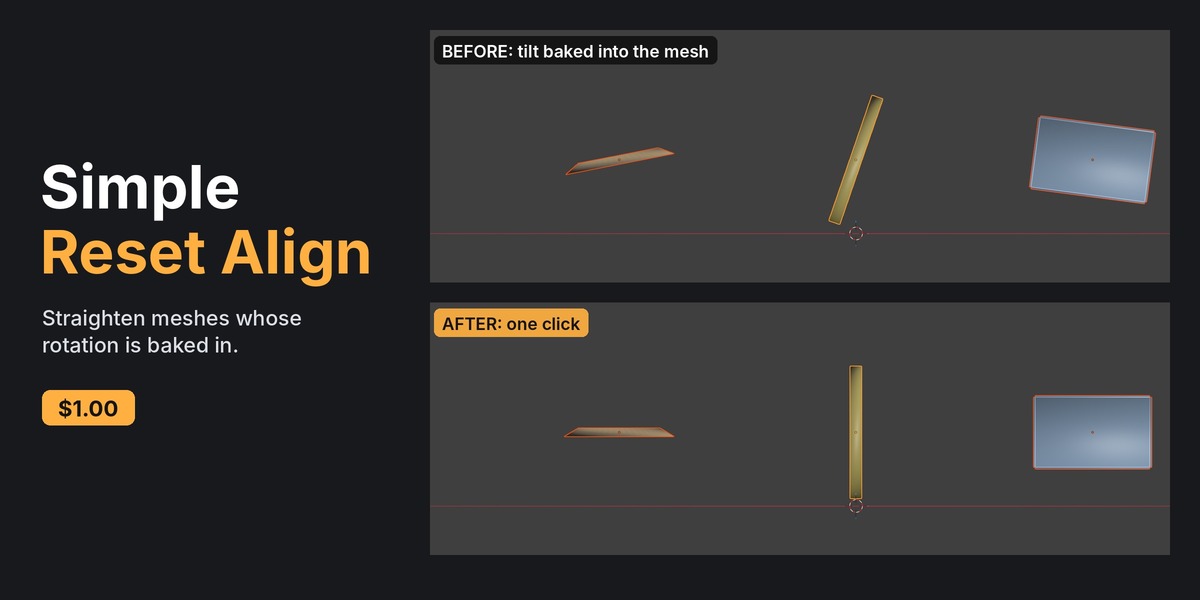
Simple Reset Align
A downloadable tool
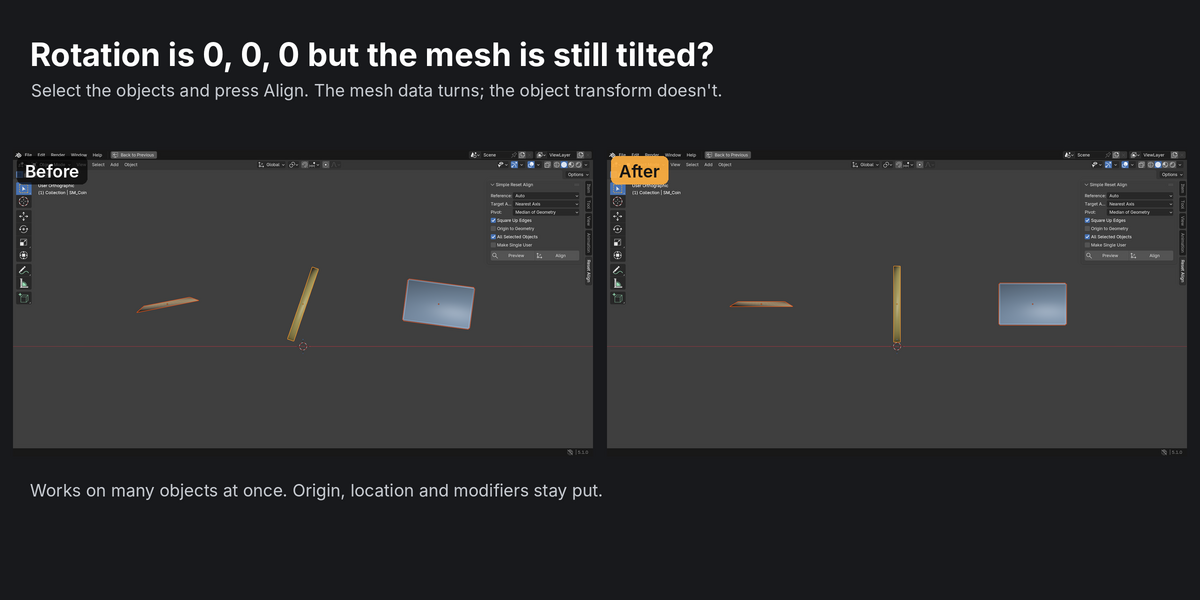
Rotation is 0, 0, 0, but the mesh is still tilted?
That happens when the tilt is baked into the mesh data: after Apply Rotation, after an import, or on a kitbash piece from someone else. There's no rotation value left to undo, so you end up guessing the angle and typing it in by hand.
Simple Reset Align measures the tilt and rotates the mesh data back onto the world axes. The object's transform, location and origin stay where they are.
How it finds the tilt
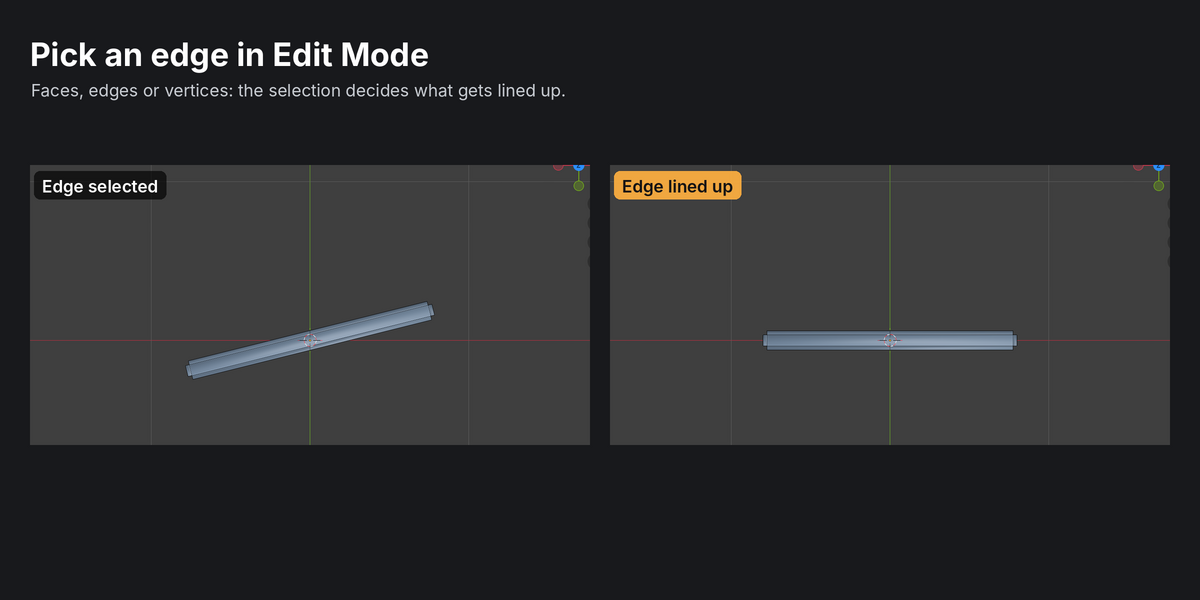
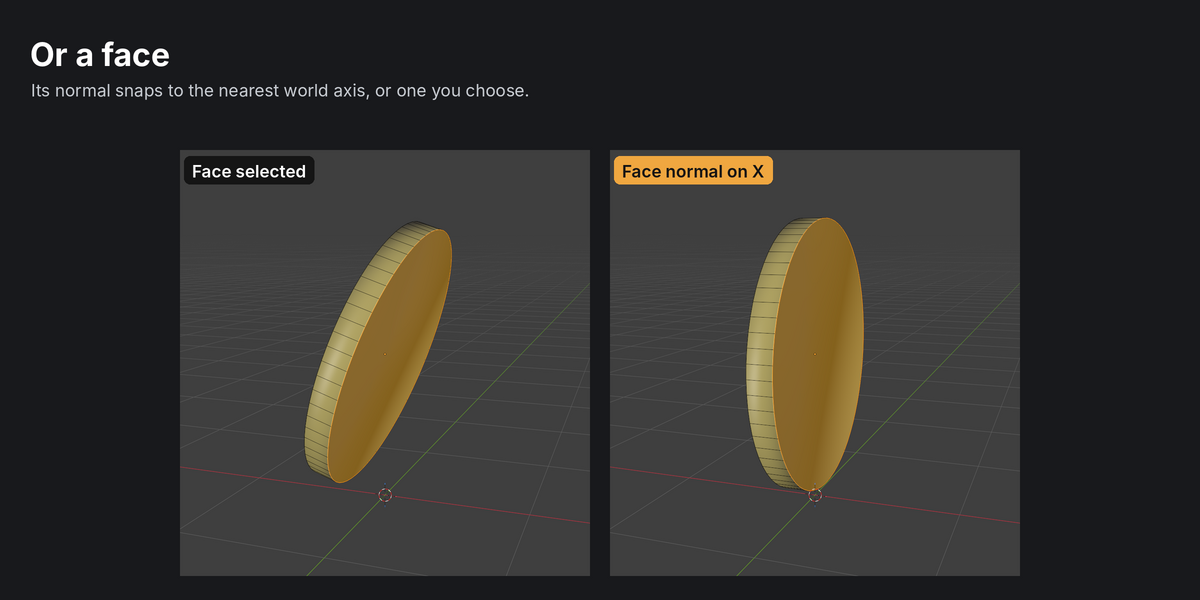
- In Edit Mode, your selection decides. Faces: their average normal. One edge or parallel edges: the edge direction. 3 or more vertices: the plane through them (or the line, if they're in a row). 2 vertices: the line between them.
- In Object Mode, it uses the largest flat area. That's the biggest group of parallel faces, which suits coins, plates, panels, tiles and boards. Caps split into triangles still count as one flat area.
- No clear flat area: it falls back to the thinnest direction of the vertex cloud (PCA).
- Square Up Edges then spins the mesh around that axis so straight edges line up with the other world axes. Round shapes like discs are left alone.
Options
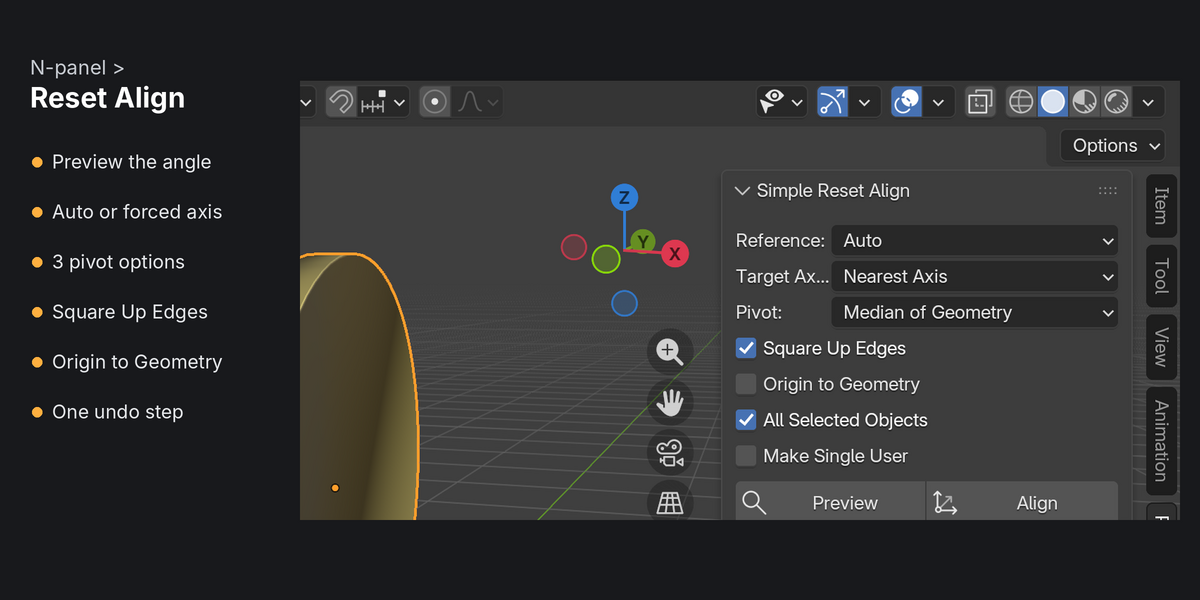
- Target axis: snap to the nearest world axis, or pick one (X, Y or Z with either sign, or a fixed +/- axis).
- Pivot: median of the geometry, the object origin, or the 3D cursor.
- Origin to Geometry afterwards (optional).
- Preview reports the angle without changing anything.
- After aligning, the status bar shows what changed, e.g. "Rotated -18.95 deg around Y".
Safe on real scenes
- Works on all selected objects at once, in Object or Edit Mode, with one undo step.
- Modifiers such as Weighted Normal and Smooth by Angle keep working. Shape keys rotate along with the mesh.
- Parented objects, non-uniform scale and negative scale: handled. The result is straight in world space.
- Shared mesh data: skipped with a warning, or given its own copy if you tick Make Single User.
- Mirror, Array, Screw and Simple Deform modifiers: these use the object's local axes, so you get a warning that their result will change.
FAQ
Does it change my object's rotation, location or scale?
No. Only the mesh data turns, around the pivot you pick, so the object's transform and origin stay the same. The one exception is Origin to Geometry, which moves the origin when you turn it on.
Will my modifiers still work?
Yes. Modifiers like Weighted Normal, Smooth by Angle and Bevel just see a rotated mesh. Mirror, Array, Screw and Simple Deform work along the object's local axes, so their result will change. You get a warning when an object has one of these.
What if several objects share the same mesh?
They're skipped with a warning, because rotating shared data would also turn the other objects. Tick Make Single User to give the selected object its own copy first.
My object is a disc or coin. Will Square Up Edges spin it randomly?
No. Square Up only acts when the edges show a clear direction. On round shapes the edges point every way, so it does nothing.
How do I undo it?
Ctrl+Z, once. It's a single undo step in both Object and Edit Mode.
Can I use it in commercial work?
Yes. The add-on is GPL, and anything you make with it is yours.
Documentation
Requirements
Blender 4.2 or newer (developed and tested on 5.1).
Installation
- Download
simple_reset_align-x.y.z.zip. Don't unzip it. - In Blender, open Edit > Preferences > Get Extensions, click the drop-down arrow at the top right and choose Install from Disk…. You can also drag the zip into the Blender window.
- In the 3D viewport, press N and open the Reset Align tab.
Use
- Select one or more meshes. In Edit Mode, you can select the faces, edges or vertices that should line up instead.
- Press Preview to see the angle, then Align.
- The same command is in Object > Transform and Mesh > Transform as Reset Align. Press F9 afterwards to change options and redo.
Options
- Reference: Auto uses your Edit Mode selection, else the largest flat area, else PCA. Selection, Largest Flat Area or Thin Axis (PCA) force one method.
- Target Axis: Nearest Axis, X/Y/Z (either sign), or +X/-X/+Y/-Y/+Z/-Z.
- Pivot: Median of Geometry, Object Origin or 3D Cursor.
- Square Up Edges: also spin the mesh around the target axis so straight edges line up. Turn it off to align only one direction.
- Origin to Geometry: move the origin to the mesh centre afterwards.
- All Selected Objects: align every selected mesh, or only the active one.
- Make Single User: give shared mesh data its own copy instead of skipping it.
Purchase
In order to download this tool you must purchase it at or above the minimum price of $1 USD. You will get access to the following files:
Leave a comment
Log in with itch.io to leave a comment.