GridSmith
A downloadable tool
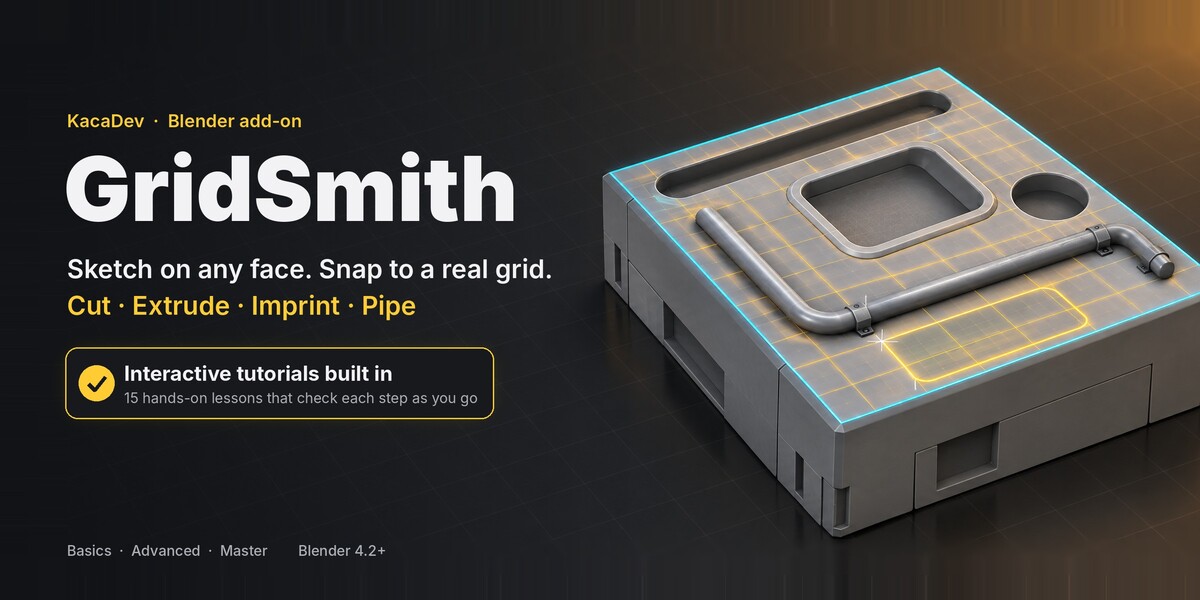
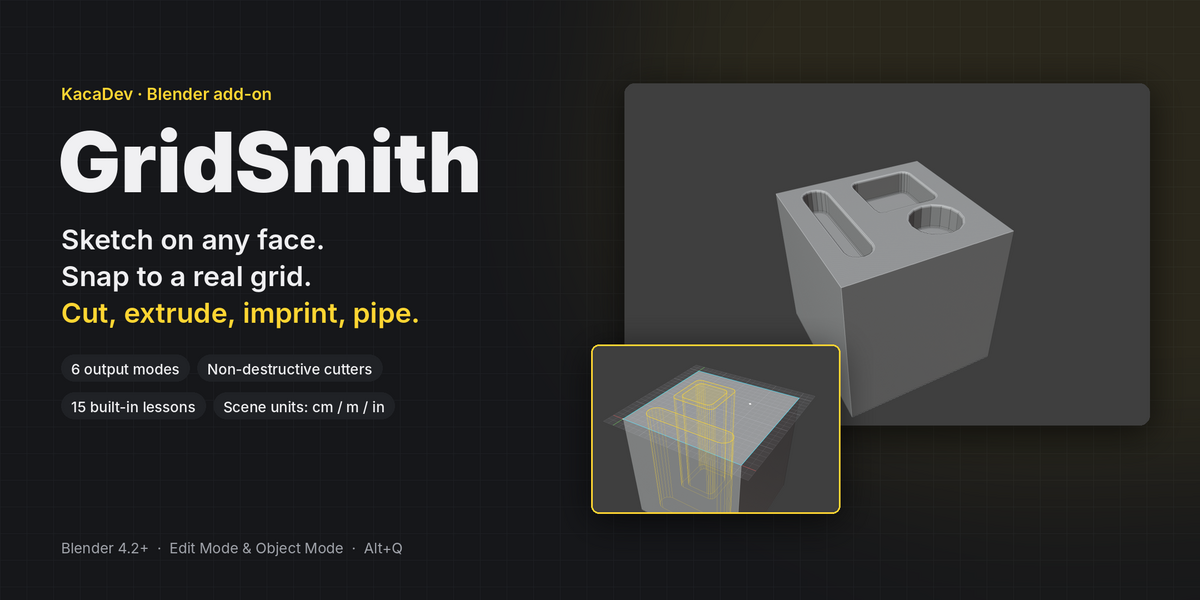
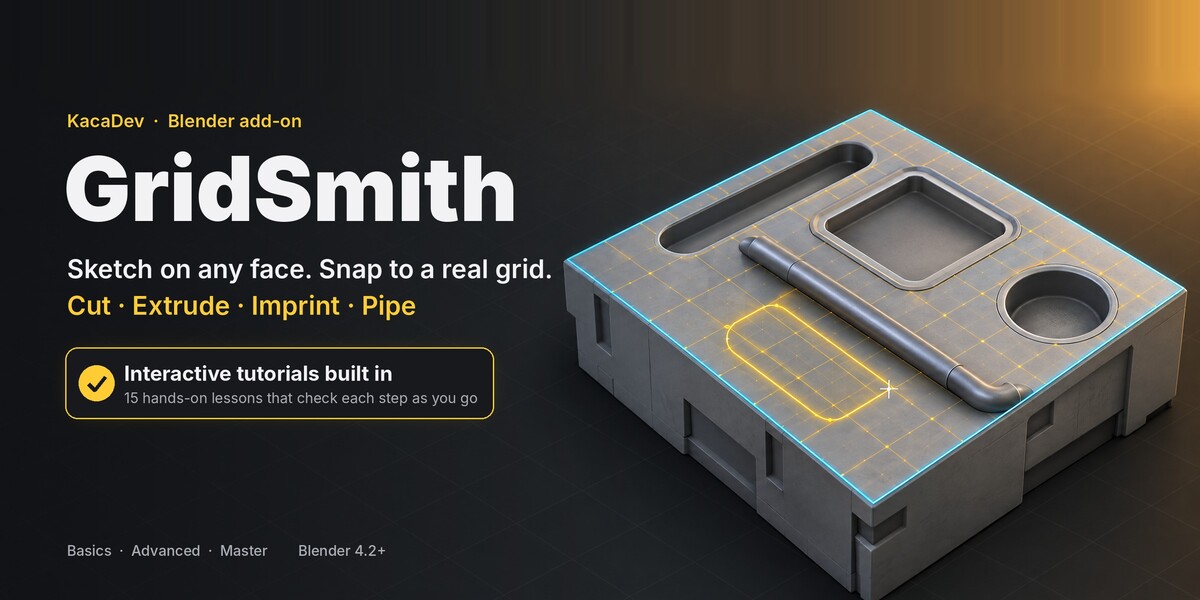
GridSmith puts a precise, snappable grid on any face you click and lets you sketch rectangles, slots, circles, polygons and guides on it. Press Enter and the sketch becomes real geometry: new faces, clean extrusions, boolean cuts, bosses, intersections or pipes.
It is built for modelling where sizes and spacing matter: modular kit pieces, hard-surface panels, vents and keyways, sci-fi greebles, architectural block-outs. Everything snaps to a grid in your scene's own units, and every size can be typed.
Learn it inside Blender
Open Learn GridSmith in the sidebar. Fifteen interactive lessons run right in the viewport, from your first cut to non-destructive workflows, and each step ticks itself off when you actually do it.
- Basics: first cut · depth and circles · controlling the grid · the six modes · undo and exit
- Advanced: slots · guides · mirror and array · offsets and round corners · pipes
- Master: live cutters · chaining sketches · block-out from nothing · bevel on commit · CAD-style numeric input
Sketch on any face
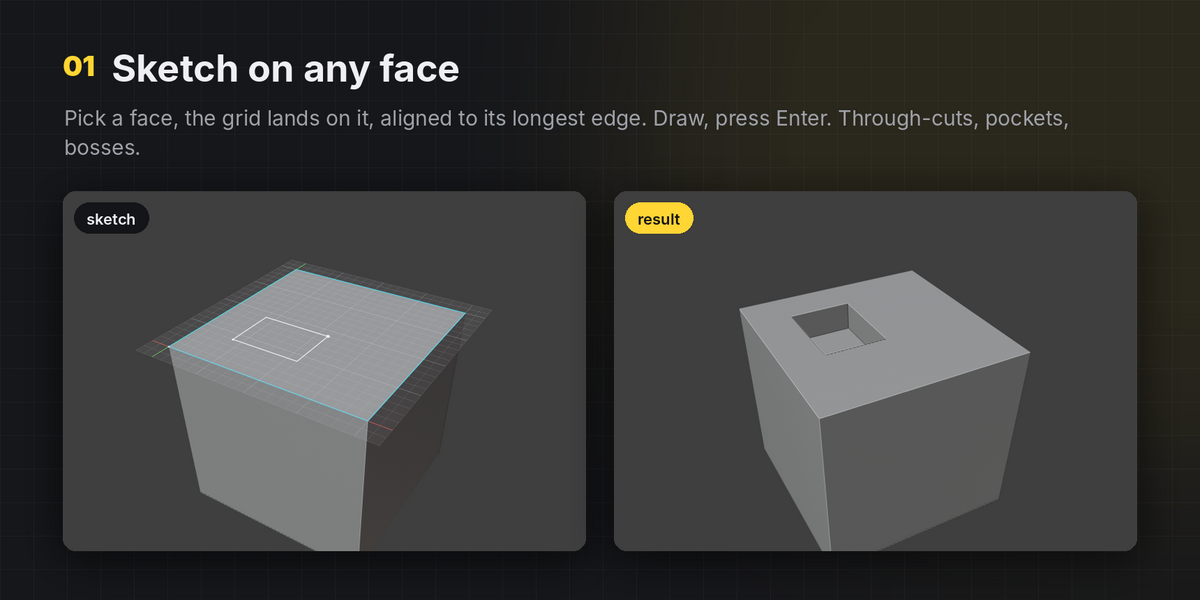
- The grid lands on the face you click, aligned to its longest edge.
- Works in Edit Mode and Object Mode. In Edit Mode a selected face (or several coplanar faces) is used straight away.
- Shift+click to add neighbouring coplanar faces to the sketch region.
- No face needed: sketch on a world XY / XZ / YZ grid at the 3D cursor and create new objects.
Six output modes
- Face: imprint the shapes as new faces, no boolean. Overlaps, holes and shapes spanning several faces are handled; UVs and materials carry over.
- Extrude: imprint and extrude into a pocket or boss with clean quad walls. Shapes crossing the face border switch to a boolean automatically.
- Cut: through-cut or a typed depth.
- Add: boolean boss, or a new object on a world grid.
- Intersect: keep only what's inside the shapes.
- Pipe: a polyline becomes a tube with filleted corners, resting on the surface. Closed shapes become ring pipes.
Shapes and helpers
- Line/polygon, rectangle, slot, circle (3–256 sides) and infinite construction guides.
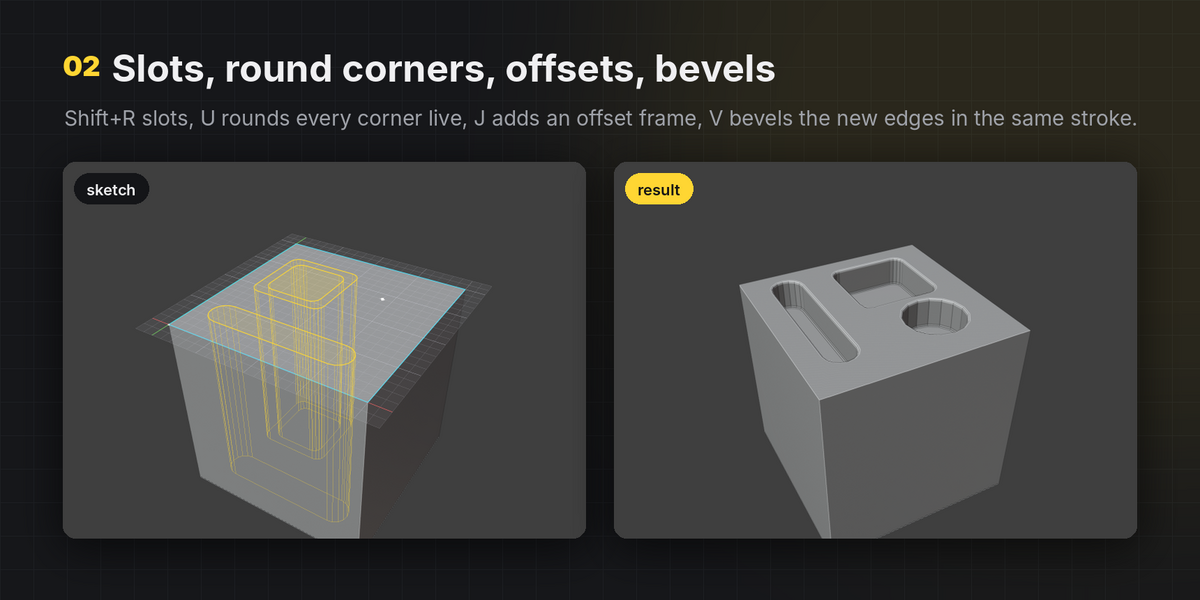
- Corner radius for rectangles, slots and polygons, applied live.
- Offset copies (frames, lips, borders) or offset in place.
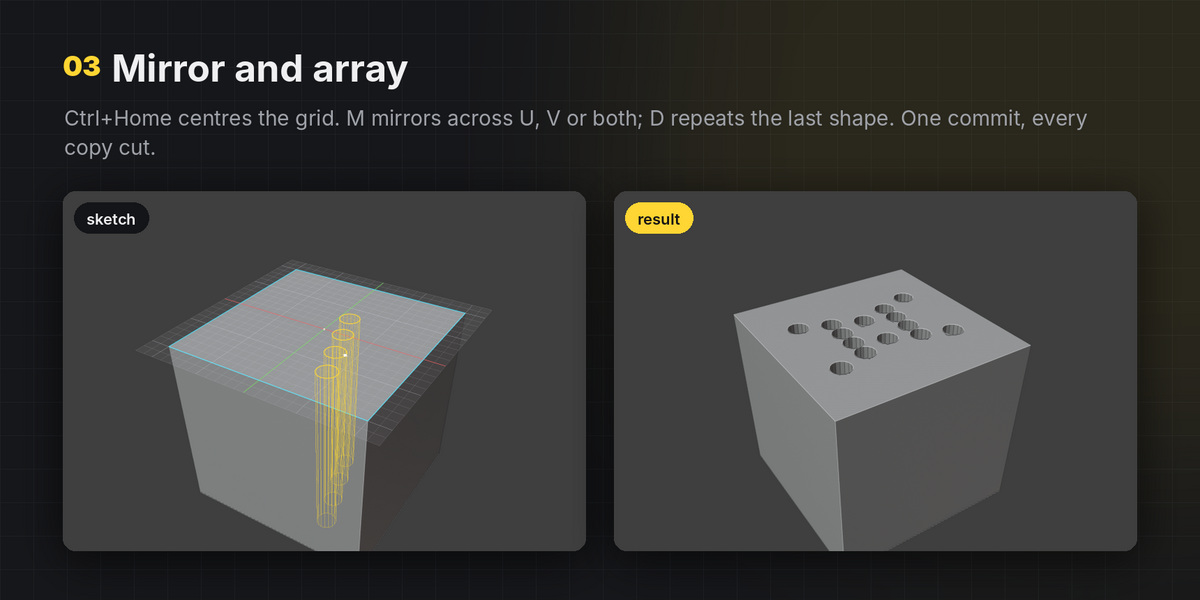
- Mirror across the grid axes, and array the last shape with a live preview.
- Bevel the new edges of a cut or extrusion in the same commit.
Precision
- Snaps to grid points, half cells, mesh vertices, edge midpoints and points along edges, sketch points and guide crossings.
- Type lengths, widths, radii, angles and heights in your scene units (
25,1m,3in). - Rotate, nudge, fit, centre or re-align the grid to any edge or vertex.
- Drag the height along the face normal or type it.
Non-destructive when you want it
- One key switches to live cutters: wireframe objects parented to your mesh, in their own collection.
- Move, rotate or scale a cutter later and the cut follows.
- The boolean is placed above your existing modifiers, so a Bevel or Mirror stack keeps working on the result.
- Apply, hide or select all cutters from the sidebar.
Workflow
- Commit and keep sketching on the result, re-pick a different face without leaving the tool, undo points and shapes step by step.
- A HUD always shows the active tool, mode, height, grid size and what Enter will do.
- Colours, HUD scale, snap radius, default grid size and the sidebar tab are all configurable.
- Works on any keyboard layout: Shift+wheel or + / - for counts and sides.
Requirements
- Blender 4.2 or newer (installed as an Extension). Tested on Blender 5.0, 5.1 and 5.2 LTS.
- Default hotkey: Alt+Q (changeable in Preferences › Keymap).
Installation
- Edit › Preferences › Get Extensions › ▾ (top right) › Install from Disk.
- Choose
gridsmith-1.2.0.zip. - Press N in the 3D Viewport and open the GridSmith tab.
Known limits
- Booleans use Blender's Exact solver, so very dense meshes take longer to cut.
- Bevel-on-commit is skipped in non-destructive mode (add a Bevel modifier after the cutter instead).
- Numpad digits are read as numeric input while the tool is open.
FAQ
Is it destructive?
By default cuts are applied directly, like a normal modelling operation, and one Ctrl+Z after exiting undoes the whole sketch. Press N in the tool for live, editable cutters instead.
Does it work with my unit setup?
Yes. The grid, HUD and typed numbers all follow the scene's unit system and scale: cm scenes show and accept centimetres, imperial scenes accept inches and feet.
Can I draw shapes that overlap, or cross the edge of the face?
Yes. Overlapping and touching shapes are merged correctly, and shapes that cross the face border are cut with a boolean so the result stays closed.
Will it mess up my UVs?
Face and Extrude modes rebuild only the faces you sketch on and carry UVs and materials over from the original face. Boolean modes follow Blender's boolean behaviour.
How do I learn all the shortcuts?
Open N-panel › GridSmith › Learn GridSmith. The 15 interactive lessons (Basics, Advanced, Master) walk you through every tool inside the viewport. Press F1 in the tool at any time for the key help overlay.
My keyboard has no + key.
Use Shift+mouse wheel for circle sides, slot width and array count. The + and - characters also work from any keyboard layout.
Documentation
Getting started
- Install: Edit › Preferences › Get Extensions › ▾ › Install from Disk, choose
gridsmith-1.2.0.zip. - Press Alt+Q in Edit Mode or Object Mode (or N-panel › GridSmith › Sketch on Face).
- Click a face, pick a tool, draw, press Enter.
New to it? N-panel › GridSmith › Learn GridSmith: 15 interactive lessons, Basics to Master. Each step ticks itself off when you do it.
Tools
- L Line / polygon: click points, click the first point (or right-click) to close
- R Rectangle: two corners
- Shift+R Slot: two centre-line points
- C Circle: centre, then radius
- G Guide: infinite construction line through two points
Output modes
- F Face: imprints the shapes as new faces. No boolean.
- E Extrude: imprint + extrude by Height (negative = pocket). Clean quads. Shapes crossing the face border switch to a boolean automatically.
- X Cut: boolean difference. Height 0 = through.
- A Add: boolean union (boss). On a world grid, creates a new object.
- I Intersect: keeps only what is inside the shapes.
- P Pipe: polyline → tube with rounded corners. Closed shapes → ring pipes.
- Tab cycles modes.
Numbers (scene units)
Type digits, then Enter. Units are allowed (25, 1m, 3in). Minus after the digits flips the sign.
- Drawing a line: segment length (snapped to 15° steps)
- Rectangle after first click:
w,h(one number = square) - Circle after centre: radius
- Slot: width before the first click, length after it
- Guide after first point: angle in degrees
- Otherwise: height / depth. H drags the height along the face normal.
Grid
- Ctrl+wheel or [ ]: grid size ÷2 / ×2
- Home: fit grid to the face · Ctrl+Home: origin to face centre · Shift+Home: reset alignment
- Ctrl+click edge / vertex: align grid to an edge / move origin to a vertex
- Q / W: rotate grid 15° (Alt: 5°) · Arrow keys: nudge one cell (Shift: half)
- Hold Shift: snap to half cells · hold Alt: no snapping · S: toggle mesh snapping
- Shift+click coplanar face: add it to the sketch region
- Home / F2 F3 F4 before picking a face: world XY / XZ / YZ grid at the 3D cursor
Shape helpers
- M Mirror: none → U → V → both
- D Array the last shape: move to set spacing, Shift+wheel for count, click
- J / Shift+J: offset copy / offset in place
- U: corner radius for rectangles, slots and polygons (0 = sharp)
- V: bevel the new edges after commit (0 = off)
- B: through-cuts also go above the face
- Shift+wheel or + / -: circle sides / slot width / array count / pipe sides
Commit, undo, exit
- Enter: commit and exit · Shift+Enter: commit and keep sketching · Alt+Enter: build as a new object
- N: non-destructive live cutters · T: pick a different face
- Backspace: remove last point · Ctrl+Z: remove last shape · Del: clear guides
- Esc / right-click: cancel the current shape, then exit · F1: show / hide key help
Live cutters
N-panel › GridSmith › Live Cutters: Apply, Show/Hide, Select. Cutters live in the GridSmith Cutters collection, are parented to the target, and the boolean is placed above your own modifiers so Bevel / Mirror still apply on top.
Preferences
Default grid size, snap radius, HUD scale, colours, sidebar tab name, default circle sides. The Alt+Q hotkey can be changed under Preferences › Keymap.
Purchase
In order to download this tool you must purchase it at or above the minimum price of $4.99 USD. You will get access to the following files:
Leave a comment
Log in with itch.io to leave a comment.